
Make your first piece in ten minutes
This page takes you from an empty project to an exported MP4. Most of the time is spent waiting for generations, not clicking.
Before you start
Section titled “Before you start”- Nomi is installed.
- You have a key from a model provider (get it on the provider’s website; if you have none, Let AI connect it for me in step 2 lets an AI assistant you already use do the connecting).
-
Create a project. Open Nomi and click New project at the top right of the project library (when the library is empty, click New blank project).
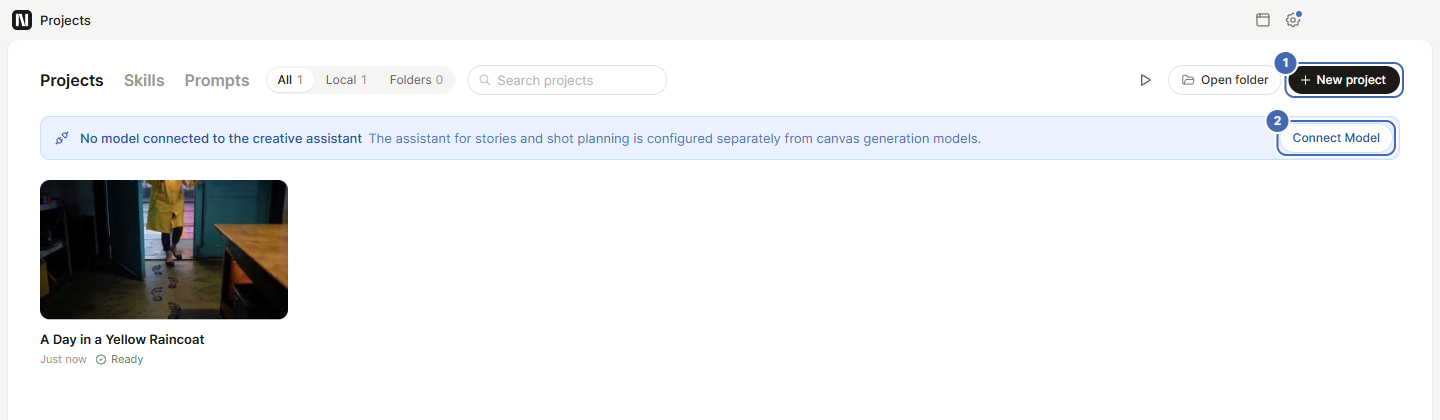
If the top of the library says no model is connected to the creative assistant, you have not connected a model yet. The next step handles it.
-
Connect a model. Click the gear in the top bar to open Settings, then choose Models. Under Add model service, the first two need only a key: APIMart and Kie.ai. Click Enter key on one of them and paste the key you got from the provider.
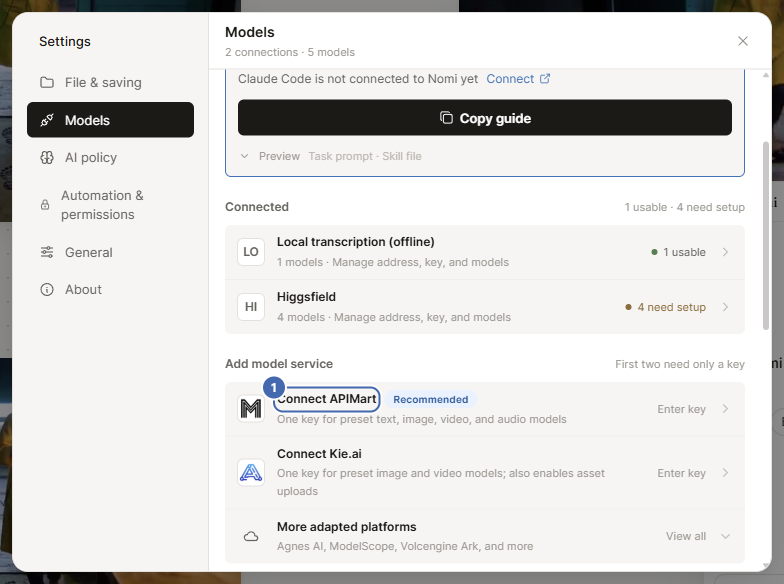
You can also use Let AI connect it for me at the top of the page: an assistant such as Claude Code or Codex connects the new model for you, and you still paste the key yourself inside Nomi.
-
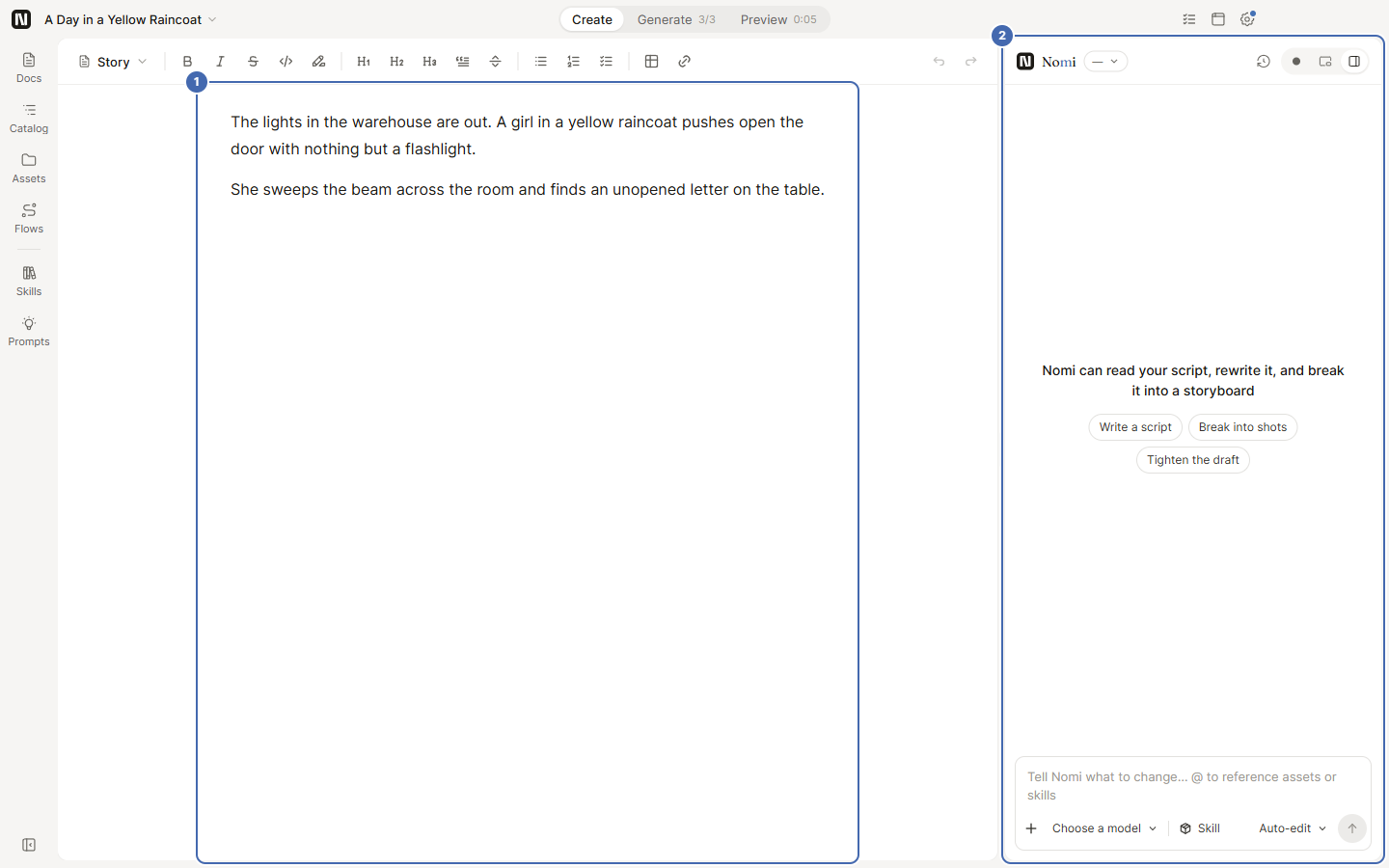
Write the story. Switch to Create in the top bar. Write your story, script or copy in the editor. The Agent panel on the right can write a script, split it into shots and edit the document.
-
Generate shots. Switch to Generate. Click Image or Video on the toolbar at the bottom of the canvas to put a node on the canvas, write the prompt, connect reference images to the video node and generate. You can also just tell the Agent what you want to shoot.
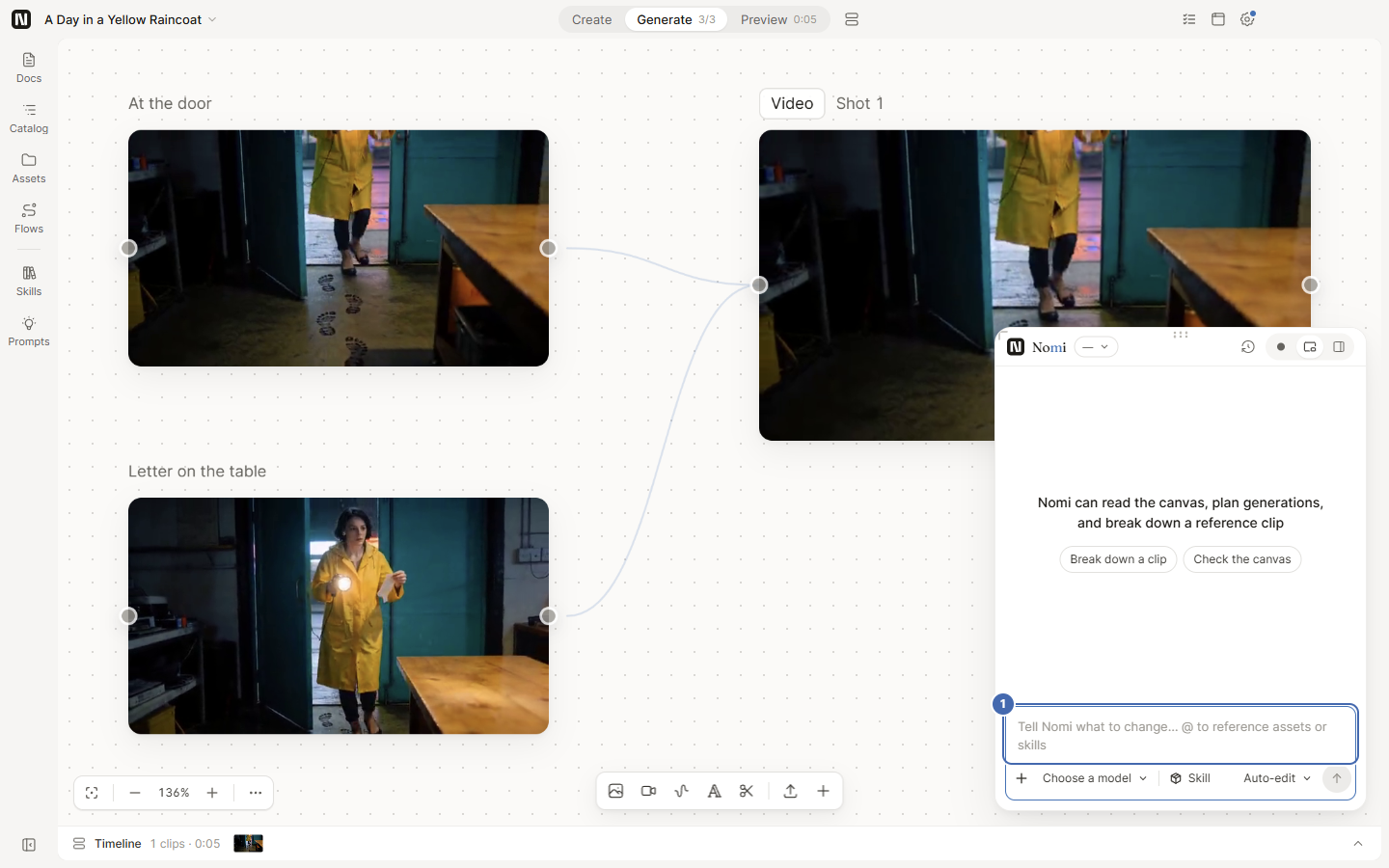
The level at the bottom right of the Agent panel decides how often it asks you about changes. If you are new, keep the default, Auto-edit: document and timeline edits happen directly. A generation that spends money is asked first on all three levels.
-
Arrange and export. Switch to Preview. Shots on the left lists the videos already generated on the canvas. Put them on the timeline, check the pacing, and add captions and music if you need them. When you are happy, click Export MP4 at the top right.
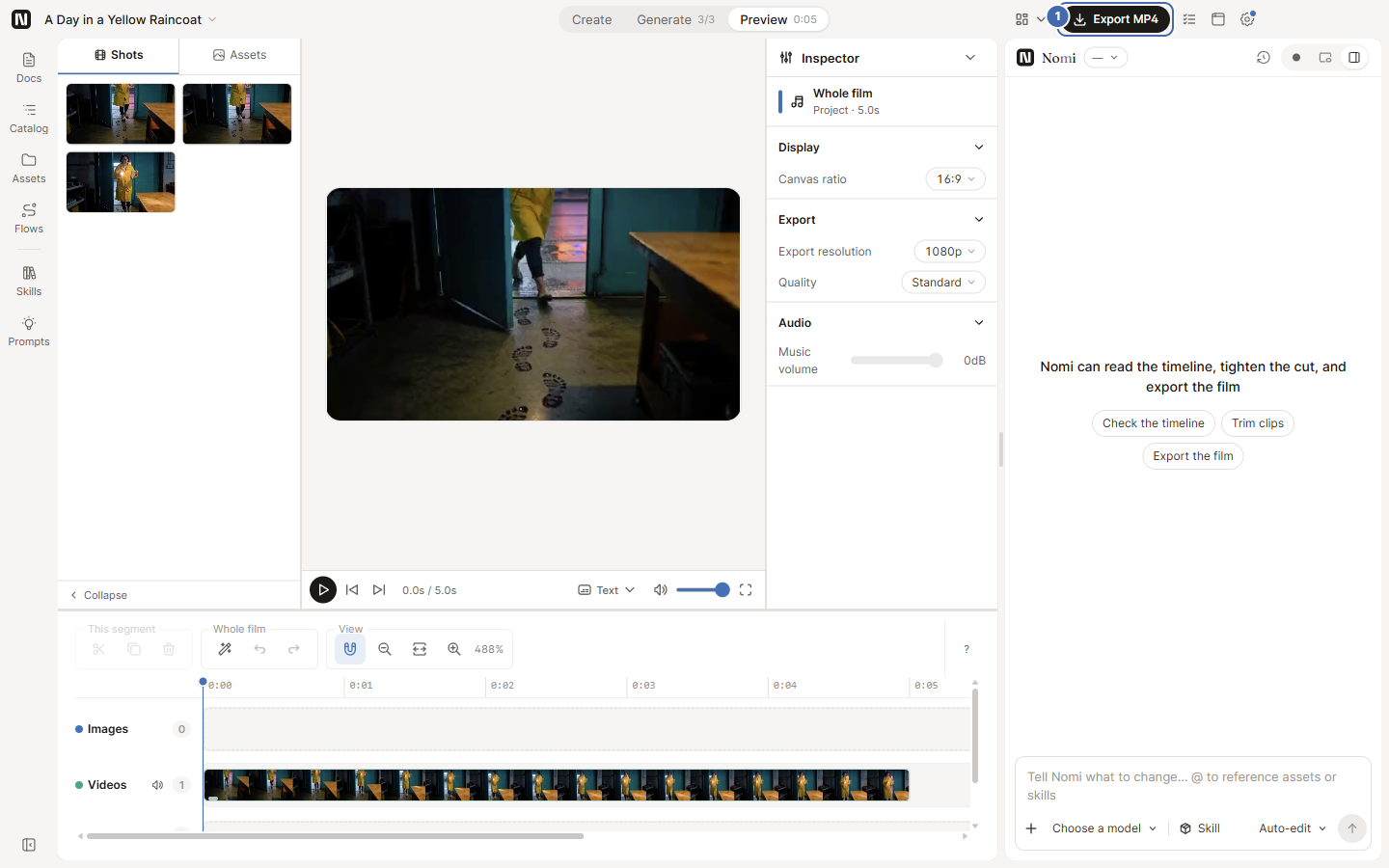
When the export finishes, the film is in the
exports/folder of the project.
What you should see
Section titled “What you should see”- Nodes with pictures on the Generate page, with reference nodes connected to the video node by lines.
- A video segment on the Preview timeline.
- An MP4 file in the project’s
exports/folder.
Quick check before you export
Section titled “Quick check before you export”- A model is connected: the Models page in Settings lists the provider you added.
- Before a generation that spends money, a confirmation shows up in the Agent panel or on the node, and the request is only submitted after you confirm.
- Play the whole film once in Preview before exporting.
Next: to let another AI assistant operate Nomi, read Before you connect.