Quick start
From download to your first shot.
Four steps. The only thing to prepare is one provider key — step two tells you where to get it.
-
Install
Download the build for your computer
The installers are not code-signed yet, so the first launch gets a warning. Here’s how to get past it.
v0.22.1
macOS: right-click Nomi in Applications → Open. Windows: on the SmartScreen prompt choose More info → Run anyway.
-
Connect
Connect a model with one key
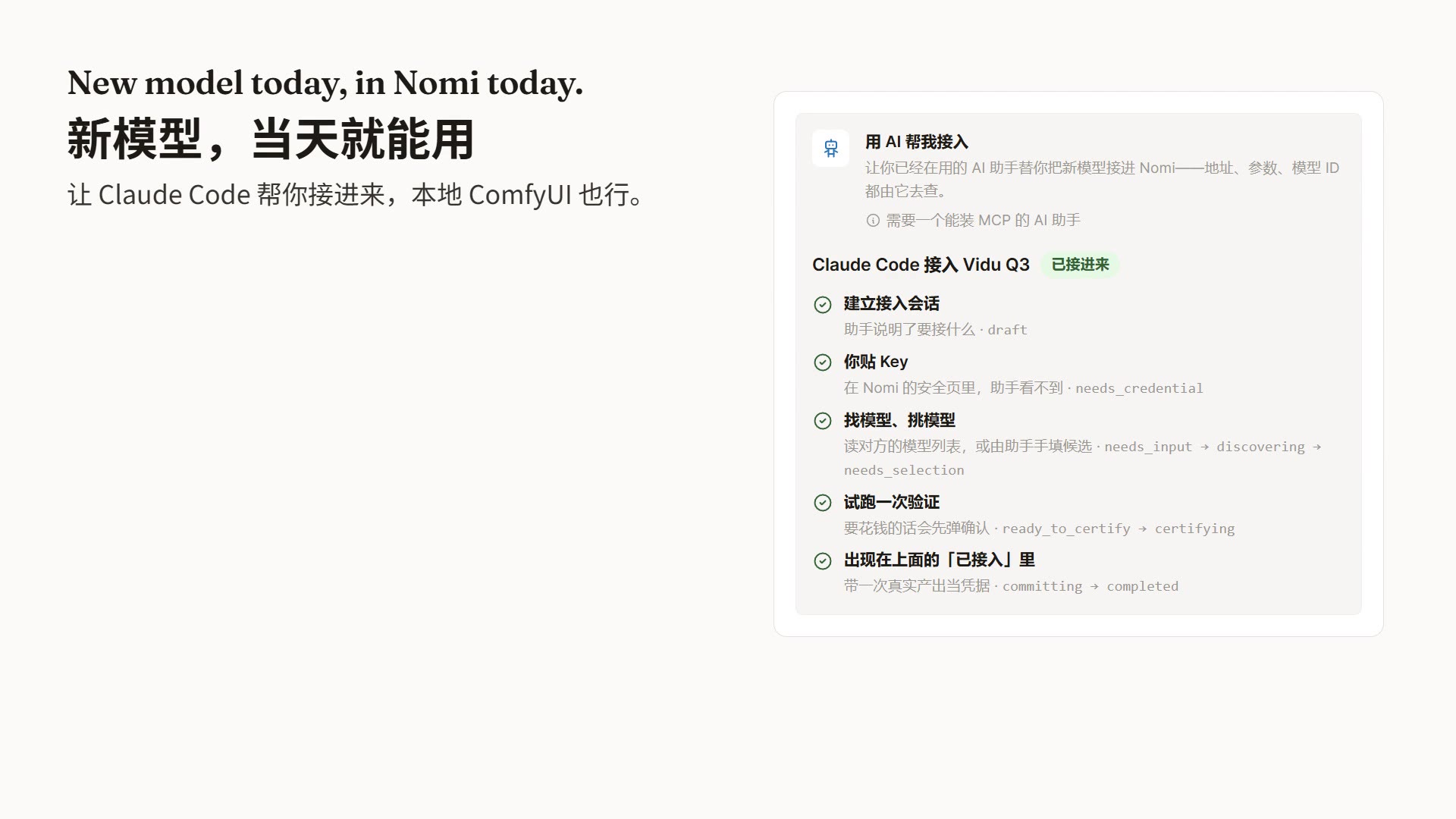
Open Settings → Models, pick APIMart or Kie.ai, and paste the key from their site — the common image, video and chat models are ready. You can also add your own relay or local ComfyUI, or click “Let AI connect it for me” and hand it to Claude Code or Codex.
-
Ask
Say what you want to make
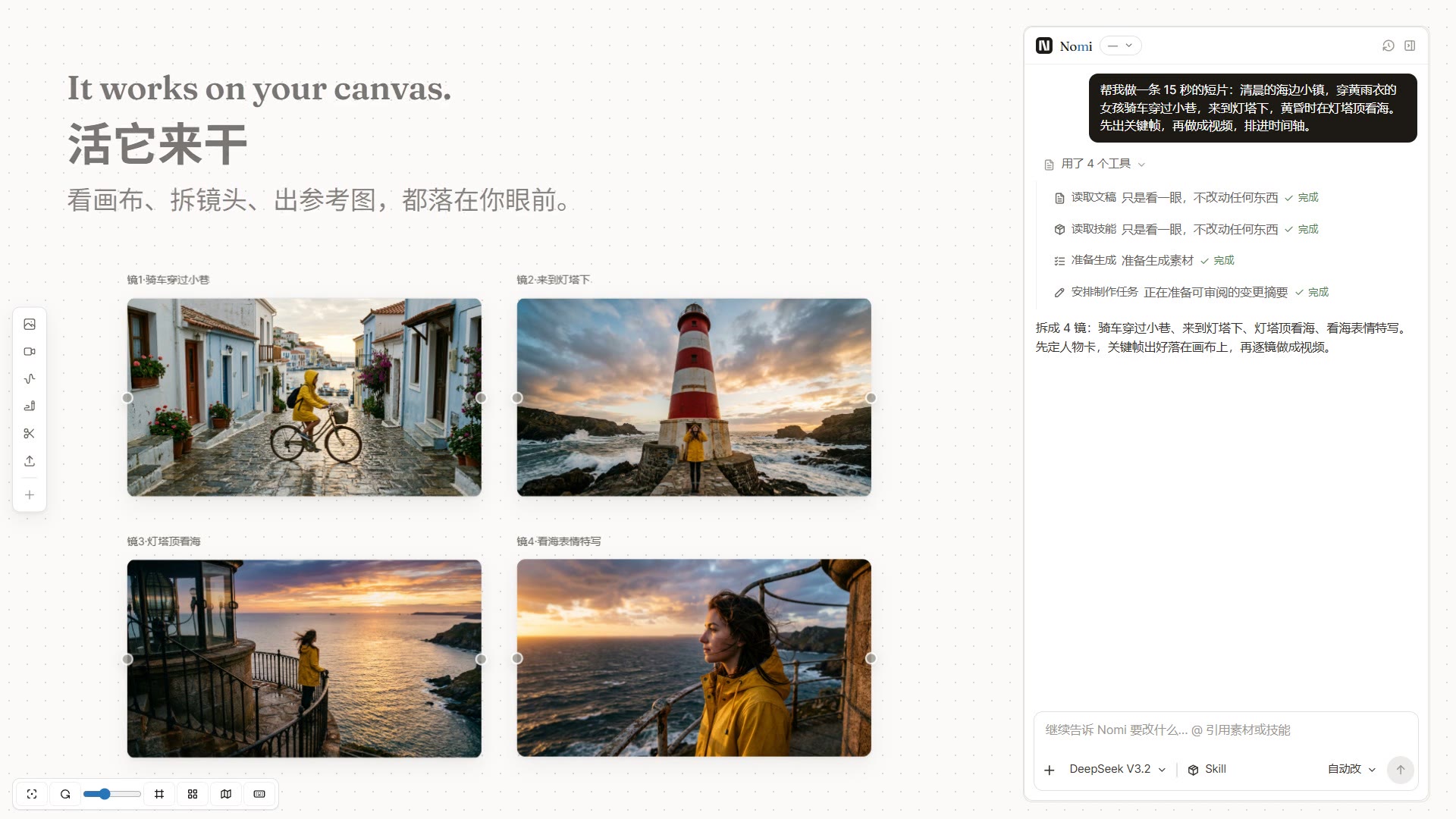
Create a project and tell the agent panel on the right, in plain words: what, how many shots, roughly how long. Start with the default Auto-edit level — it edits documents and the timeline without bothering you, and asks before any paid generation.
-
Export
Keep the good takes, arrange, export
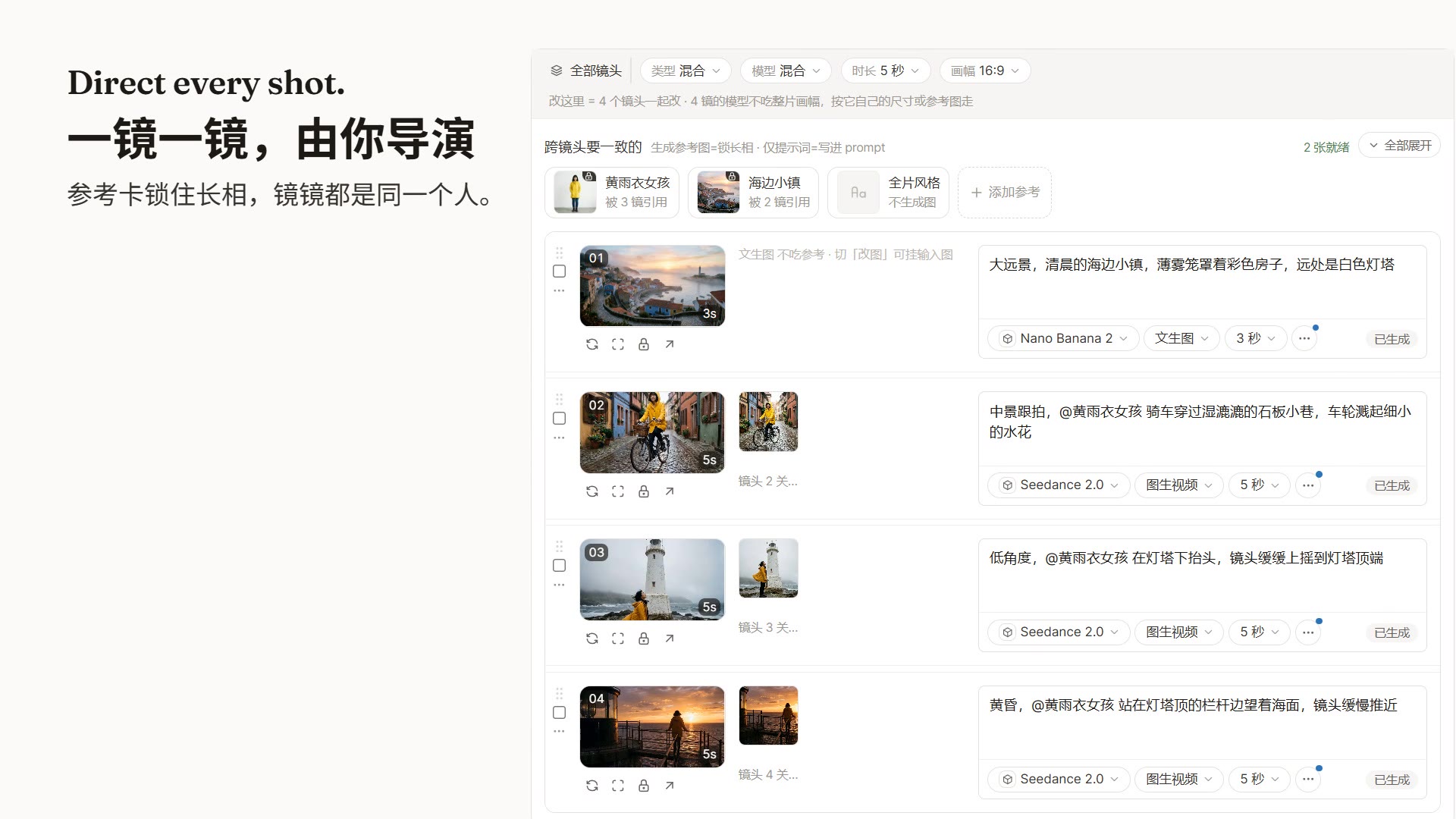
For a shot you don’t like, change the prompt or the model in the storyboard and generate again; lock a reference card to keep a character consistent. Arrange the timeline and export MP4.
FAQ
How much does it cost?
Nomi itself is free. Generation costs whatever your provider charges, settled directly between you and them. Free models (some on ModelScope, for example) and local ComfyUI cost nothing.
Do I need a GPU?
No. By default Nomi uses cloud APIs, so an ordinary laptop is enough. Local ComfyUI is optional — add it if you have a GPU and want to save money.
Is my footage uploaded?
Projects live on your own computer. Only when you call an external model does the content that generation needs go to the provider you configured.
Can the agent hand me a finished film?
It can go from one sentence to characters, keyframes and video, and lay them on the timeline. Export is still one click by you. On long tasks it may pause to check in — reply “continue”.
Want the detailed walkthrough? Chinese handbook · MCP guide