
Connect Claude Code, Codex and Cursor
You connect once: click in Nomi, Nomi writes its own entry into the assistant’s MCP configuration, and it takes effect after you restart the assistant. Before you start, make sure Nomi is open and the assistant is installed on this computer.
Find the entry
Section titled “Find the entry”-
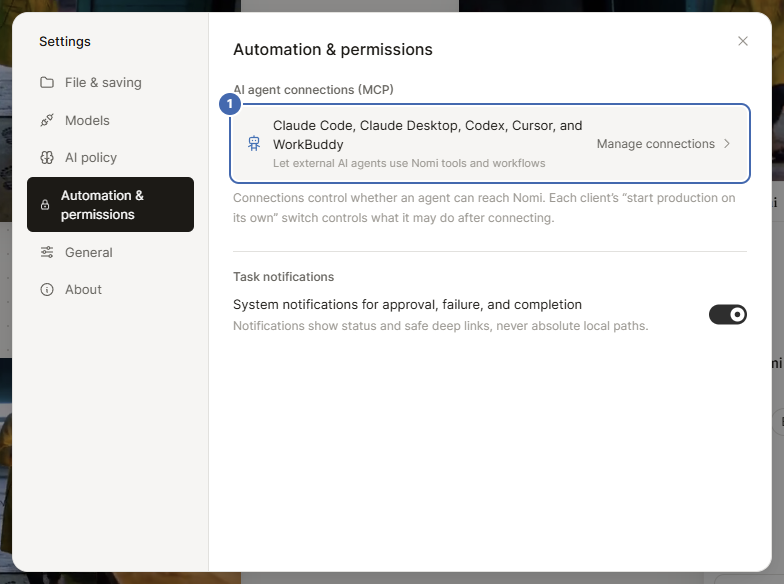
Click the gear at the top right of Nomi to open Settings, then choose Automation & permissions.
-
On the AI agent connections (MCP) row, click Manage connections.
-
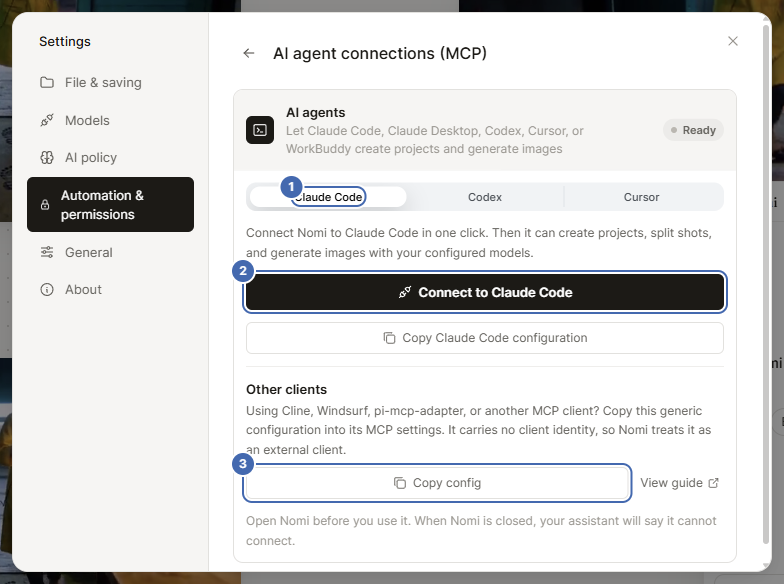
The switcher at the top of the card only lists the assistants detected on this computer. Click the one you want to connect.
Claude Code
Section titled “Claude Code”- Pick Claude Code in the switcher and click Connect to Claude Code.
- Nomi merges its
nomientry into~/.claude.json, leaves your other MCP servers as they are, and keeps a backup before rewriting. - When the card says the configuration was updated, restart Claude Code.
- After the restart, say a sentence to it, for example the sample sentence shown on the card.
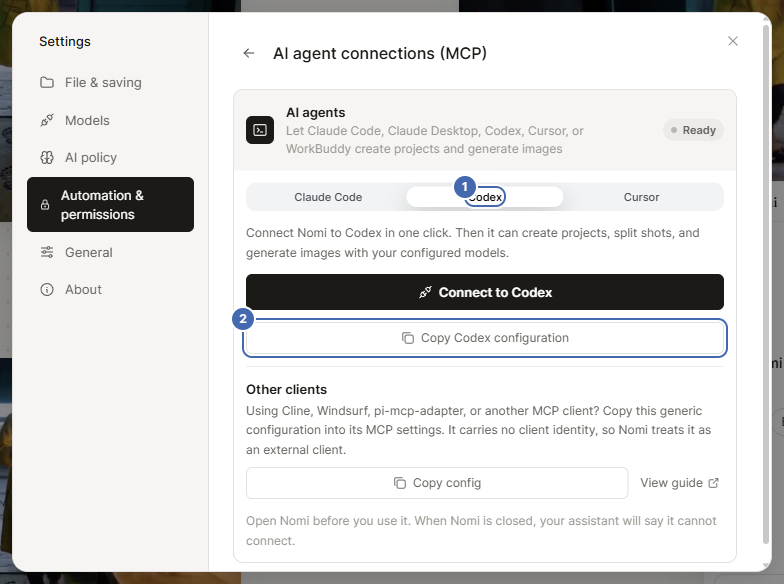
- Pick Codex in the switcher and click Connect to Codex.
- Nomi writes its
nomientry into~/.codex/config.tomland leaves the rest of your configuration alone. - Restart Codex.
Cursor
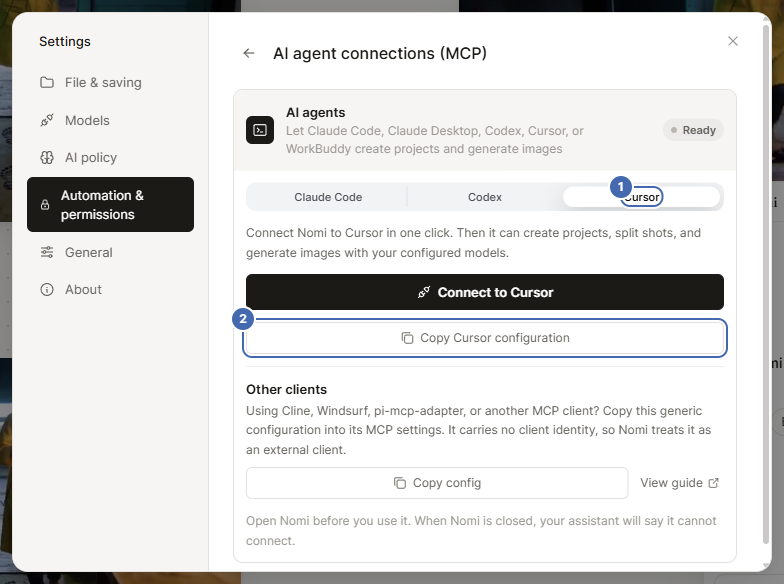
Section titled “Cursor”- Pick Cursor in the switcher and click Connect to Cursor. Nomi writes
~/.cursor/mcp.json. - Restart Cursor. The first time Cursor calls Nomi it may ask you to approve it once more. That is Cursor’s own approval, and Nomi does not approve it for you.
- Cursor is not a trusted starter by default: the switch “Let Cursor start production on its own” on the card is off, so at first it can only start drafts and read status. Turn that switch on yourself if you want it to start production directly.
Other clients
Section titled “Other clients”For Cline, Windsurf or another MCP client, click Copy config under Other clients at the bottom of the card and paste it into that client’s MCP settings.
The shape of the configuration is below, but the launch command and arguments differ from computer to computer, so always copy the one Nomi gives you and never type it from this example:
{ "mcpServers": { "nomi": { "command": "…", "args": ["…"] } }}This generic configuration carries no assistant identity, so Nomi treats it as an external client: it works, but it is not a trusted starter, so generation still asks you every time.
On the same card, select the assistant and click Remove connection.