What’s new
Compared with MiniMax's earlier Hailuo 01 and 02 generations:
- One model spans tasks that used to need several: text-to-video, image-to-video, first-and-last-frame, subject reference, and motion reference used to be separate specialized models. H3 folds them into one model — you just describe the relationship between your reference material and the target clip in plain language.
- Native stereo sound: generated clips come with synchronized stereo audio built in, with no separate dubbing pass required.
- Native multi-shot support: multi-shot data was part of pretraining from the start, so a single generation can naturally contain several shots.
- Direct 2K output: instead of bolting on a super-resolution module, H3 regenerates its own low-resolution output in context — MiniMax says this recovers fine detail, like small text, that conventional upscaling tends to lose.
What it’s good for
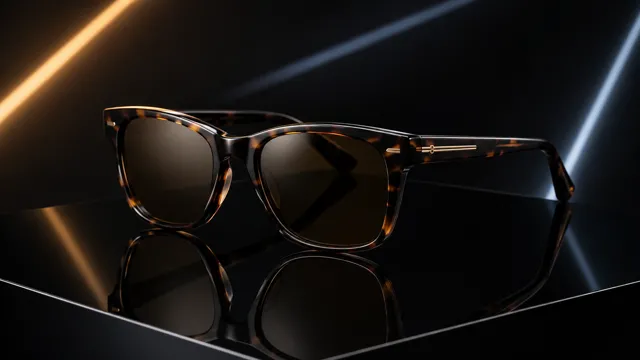
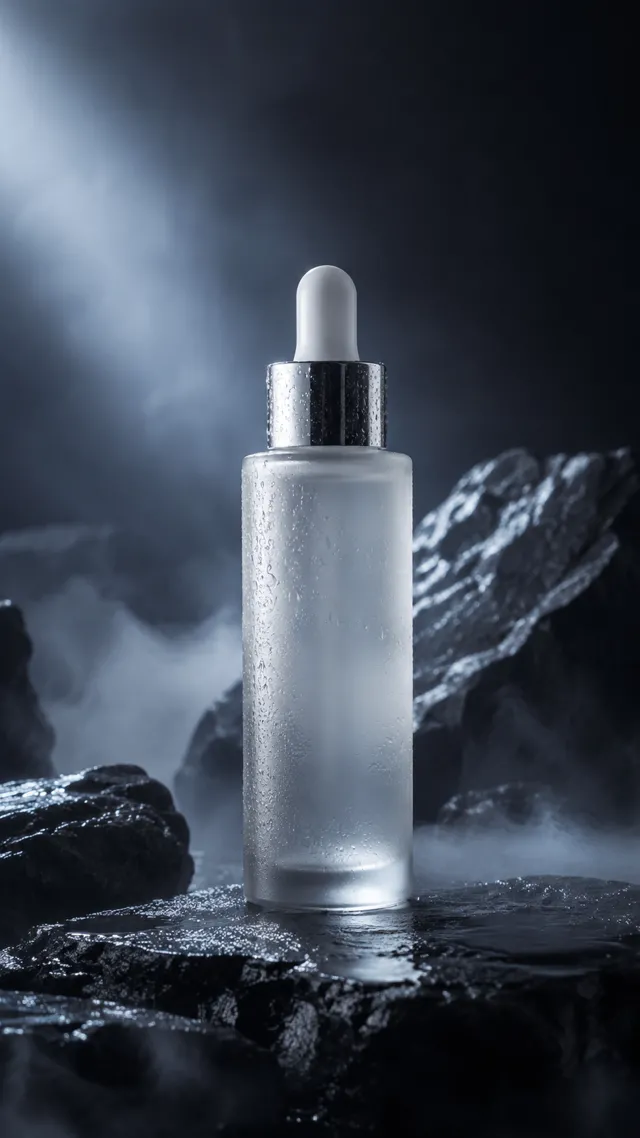
- Polished short-form pieces that need a strong finish: opening titles, product-site videos, animated posters.
- Advertising and e-commerce — MiniMax names these directly as target use cases for H3.
- Complex creative work that blends a reference video's camera move, a reference image's character, and a reference audio track's voice in one shot.
Prompting tips
- Describe the relationship between your references in one sentence, e.g. "match the camera move from video 1, and have the character in image 2 lip-sync to audio 3" — there's no fixed task template to fill in.
- Set an explicit aspect ratio for pure text-to-video (it isn't adaptive there); in reference mode you can leave it on adaptive.
- Use bracketed camera tags like [pan] or [zoom] right after the relevant description to control camera movement.
- References have three separate caps: up to 9 reference images, up to 3 reference video clips (2–15s each, 15s total), and up to 3 reference audio clips (15s total) — with all reference files capped at 12 combined.
- For a complex prompt you're unsure how to phrase, run it through MiniMax's H3-Context-IR endpoint first to expand it into a more detailed, structured prompt before generating.
- Prompts can run up to 7,000 characters — more headroom than most video models, so you can be specific.
Text-to-video, 16:9, 2K, 10 seconds.
Match the Hitchcock zoom from reference video 1; have the girl in reference image 2 lip-sync to the melody in reference audio 3.
[push in] slowly from a wide shot to a close-up on her face as the lighting shifts from backlit to front-lit.
Setting: an old cinema stage, red curtains, warm yellow spotlights.
Known limits
- MiniMax said at launch that the model's multimodal understanding still has room to grow.
- MiniMax also noted the current model size still caps some capabilities, and visual detail in certain scenes can still be improved.
- First-and-last-frame mode and multimodal reference mode can't be combined in the same request.
Using it in Nomi
On the generation canvas, add a video card, pick “MiniMax H3” in the model picker and choose a mode (Text to video, First frame to video, Multi-reference, First and last frame). Add your references, write the prompt and generate. In the storyboard you can pick it per shot. The first time, connect any one of the providers above under Settings → Models.